
How to factory reset your MacBook (M1, M2, M3, M4, M5 or newer)?

How to factory reset your MacBook (M1, M2, M3, M4, M5 or newer)?

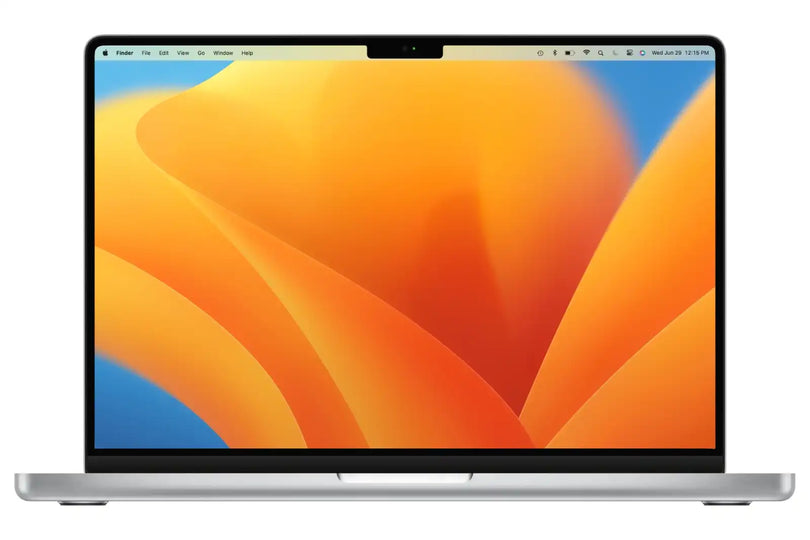
This guide applies to MacBooks with Apple Silicon (M1 and above).
It uses Erase Assistant, which is the recommended and simplest method.

What Happened to Mobile Monster? Here’s the Best Alternative Reading How to factory reset your MacBook (M1, M2, M3, M4, M5 or newer)? 2 minutes

This guide applies to MacBooks with Apple Silicon (M1 and above).
It uses Erase Assistant, which is the recommended and simplest method.


 Before you start (important)

  • This process permanently deletes all data, please make sure you have backed up your data before proceeding further

  • Make sure:

    • You know your Apple ID password

    • The MacBook is connected to Wi-Fi

    • The MacBook is plugged into power


Step 1: Open Erase Assistant

  1. Click the Apple menu () in the top-left corner

  2. Select System Settings

  3. Go to General

  4. Click Transfer or Reset

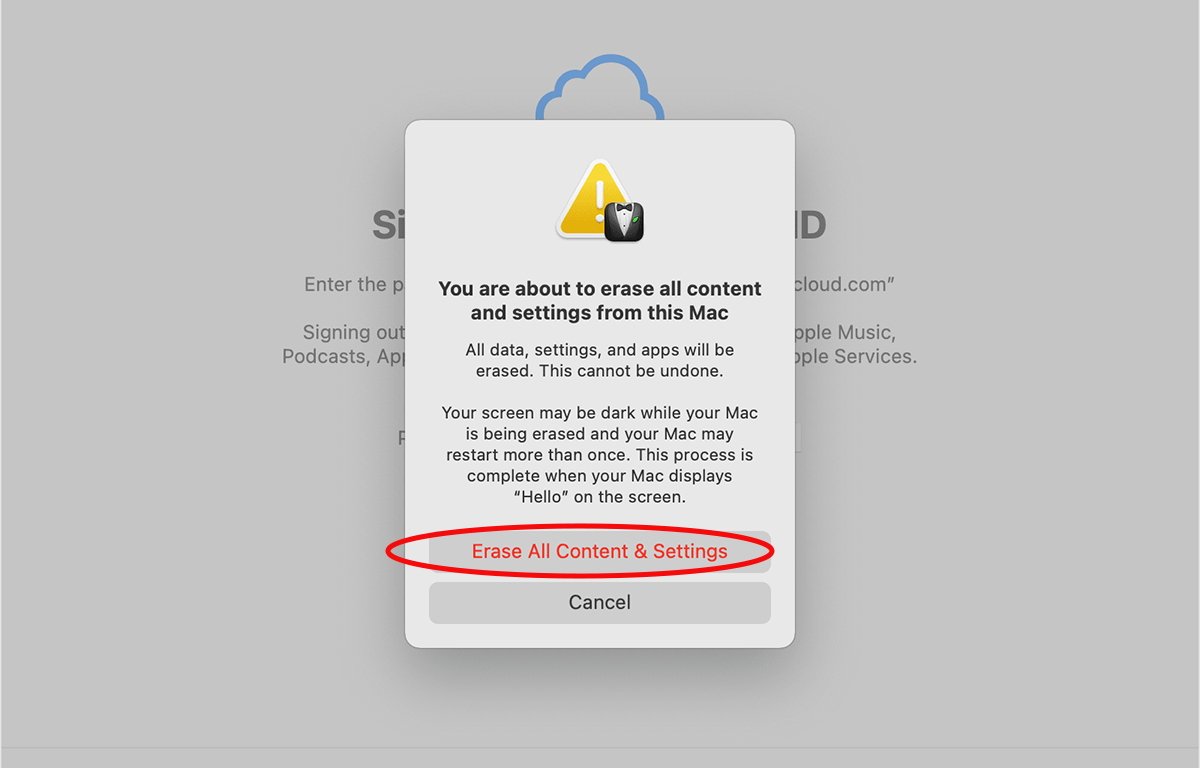
  5. Select Erase All Content and Settings

https://cdsassets.apple.com/live/7WUAS350/images/mac-os/monterey/macos-monterey-erase-all-content-and-settings.png
https://www.ibeesoft.com/img/screen/transfer-or-reset-in-system-settings.png
https://discussions.apple.com/content/attachment/245a41d7-a419-4782-a42e-e2e4a47e673e

Step 2: Review what will be erased

You’ll see a summary explaining that the following will be removed:

  • User accounts

  • Files and data

  • Apple ID & iCloud

  • Touch ID & passwords

  • Network settings

Click Continue.

https://photos5.appleinsider.com/gallery/57803-117706-erase-xl.jpg


Step 3: Enter your passwords

  1. Enter your Mac login password

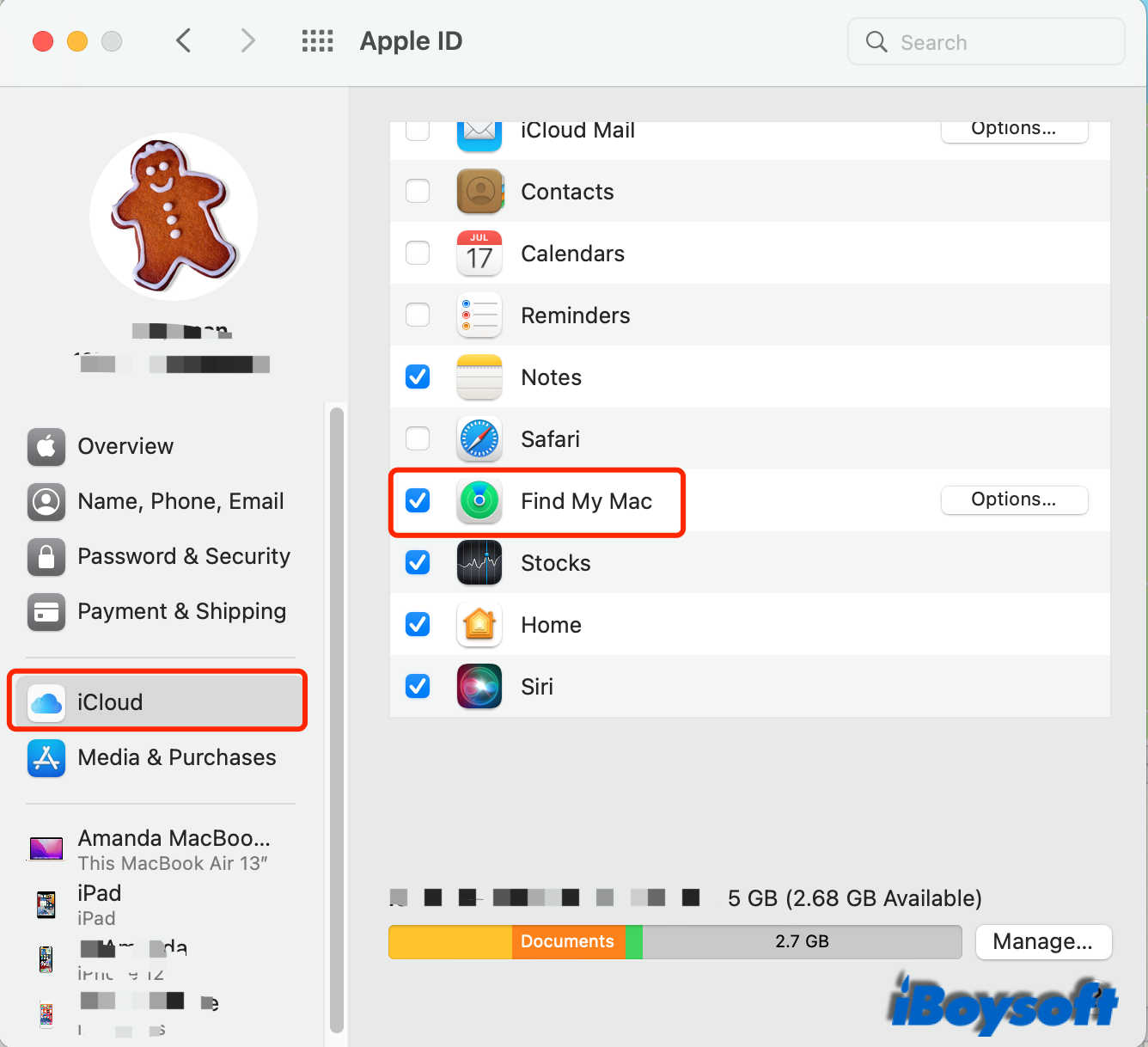
  2. Enter your Apple ID password
    (This disables Find My and removes Activation Lock)

⚠️ This step is required.
https://discussions.apple.com/content/attachment/3cb5e42a-0854-42e4-8416-cde31653b9cb
https://iboysoft.com/images/en-news/cant-disable-find-my-mac/turn-on-find-my-mac.png

Step 4: Start the erase process

  • Click Erase All Content and Settings

  • The MacBook will:

    • Restart automatically

    • Erase all data

    • Reinstall macOS

⏳ This usually takes 10–30 minutes, depending on internet speed.


Step 5: Stop at the setup screen (important)

When the erase is complete, you’ll see the “Hello” setup screen.

Do not sign in again

To finish:

  1. Press Command (⌘) + Q

  2. Select Shut Down


The MacBook is now factory reset and ready for the next user.

Stay up-to-date

Read More

How to factory reset your MacBook (M1, M2, M3, M4, M5 or newer)?

How to factory reset your MacBook (M1, M2, M3, M4, M5 or newer)?

This guide applies to MacBooks with Apple Silicon (M1 and above).It uses Erase Assistant, which is the recommended and simplest method.
What Happened to Mobile Monster? Here’s the Best Alternative

What Happened to Mobile Monster? Here’s the Best Alternative

For over 13 years, Mobile Monster has been a top-ranked trade-in provider in Melbourne. Backed by heavy advertising and strong brand recognition, it became a household name for consumers looking to sell their used devices. However, as customer expectations evolve—especially around speed, communication, and transparency—our recent test suggests the experience may no longer be as smooth as it once was.
Will Apple’s iPhone Ban in Indonesia Set a Global Trend? What If It Happened in Australia?

Will Apple’s iPhone Ban in Indonesia Set a Global Trend? What If It Happened in Australia?

The tech world has been buzzing with recent news from Indonesia: the country banned the sale of Apple’s iPhone 16 due to the company’s failure to meet strict local content requirements. This decision has sparked a global conversation about the future of tech regulation, raising questions about whether similar measures could be implemented in other countries like Australia.

Leave a comment

All comments are moderated before being published.

This site is protected by hCaptcha and the hCaptcha Privacy Policy and Terms of Service apply.